


Phone – Reading Email/Responding to Email

Click on the envelope in the top right-hand corner to view messages or to create a message.

To view your inbox, click on the Inbox button. If you have messages, it will display how many messages next to the Inbox.

Select the message you would like to read or reply to.

The messages from Focus will display as a chat bubble. To reply, use the text box below to create your message, then click send.
Phone – Emailing Teacher

To create a message, click on the envelope in the top right-hand corner of the app.

Click Compose to create a new message.

- Click the dropdown to choose who to send your message to.
- Compose your message.
- Click Send.
Computer – Emailing Teachers
You can email your student’s teachers directly from the portal page.

Student tiles default into the Grades tab. From here, you can see the student schedule, teacher’s name, and your student’s absences. If you click on a teacher’s name, it will take you into the communication part of the program.

The communication part of Focus can be used to email teachers directly.
- Recipient Name – select who you would like to send a message. If you clicked on a teacher from the Portal page, their name will automatically be selected. This list will include your student’s teachers associated to your student’s classes. If you have students at multiple schools, you may have more options to select from. You can also select multiple if you would like to email multiple teachers at once.
- Secure Email – require recipients to log into Focus to view message.
- Save Draft – if you are not finished with your email, you can save it as a draft to complete later. If you navigate away from the screen before clicking Save Draft, your message will be deleted.
- Discard – to delete your composed email, click discard.
- Print – if you would like to print a copy of your email, click Print.
- Send – you cannot send a message until you have typed information into the body of the message. Once you have finished composing your message, click the send button to email it to your recipient.
- Message Body – this is where you type your email to your student’s teacher or counselor.

Another way to get to the Communication feature, is to use the left menu to directly click on Communication.

This will default you into the Inbox. If you have never received a message, your inbox will be empty.

- Compose – create a new message.
- Inbox – view messages sent to you.
- Sent – view messages you have sent through Focus.
- Drafts – where saved drafts are stored.
Settings
Allows parents to manage how and when you receive school communications for each linked student. This can help reduce inbox overload and improve engagement. To enable the daily email digest that consolidates messages into a single summary delivered at a preferred time, update your settings in your parent portal.
Note: These settings do not apply to emergencies or attendance alerts
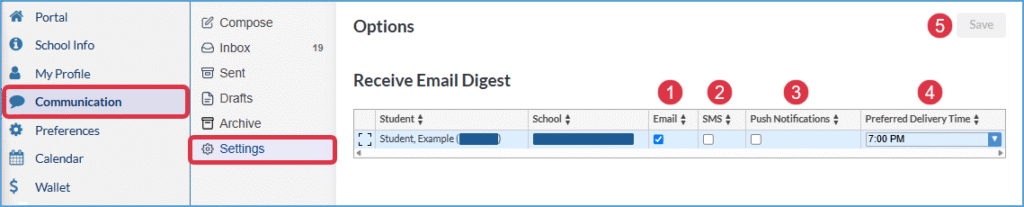
- Email – check this box to include eligible email messages in the daily parent digest for the student
- SMS – check this box to include non-emergency SMS messages in the faily parent digest for the selected student
- Push Notifications – check this box to include push notifications in the daily parent digest for the selected student
- Preferred Delivery Time – choose an option from the dropdown to determine when the daily digest email is sent
- Save – after you have selected your prefereces, click save
You must be logged in to post a comment.