
Student Block Overview
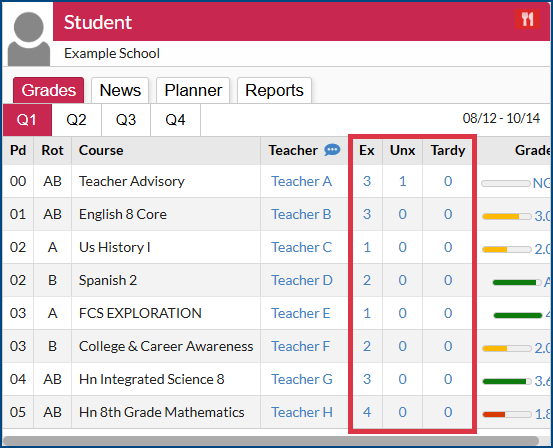
When looking at your student’s tile on the Portal page, you can see a quick glance at their attendance for the quarter. It will display per course the number of times a student has had an excused absence (Ex), unexcused absence (Unx), and the number of times a student has been tardy.
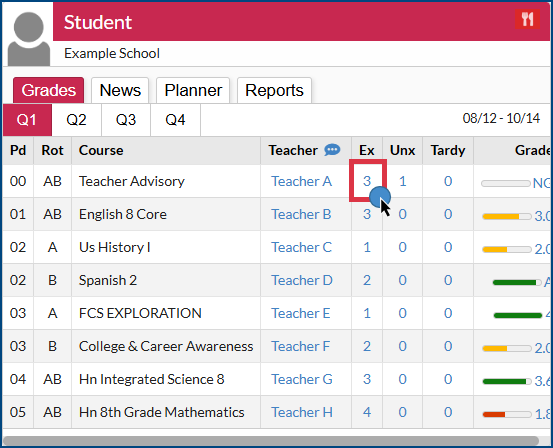
If you click on the number of absences, it will take you into the Absences screen for additional detail
Absences
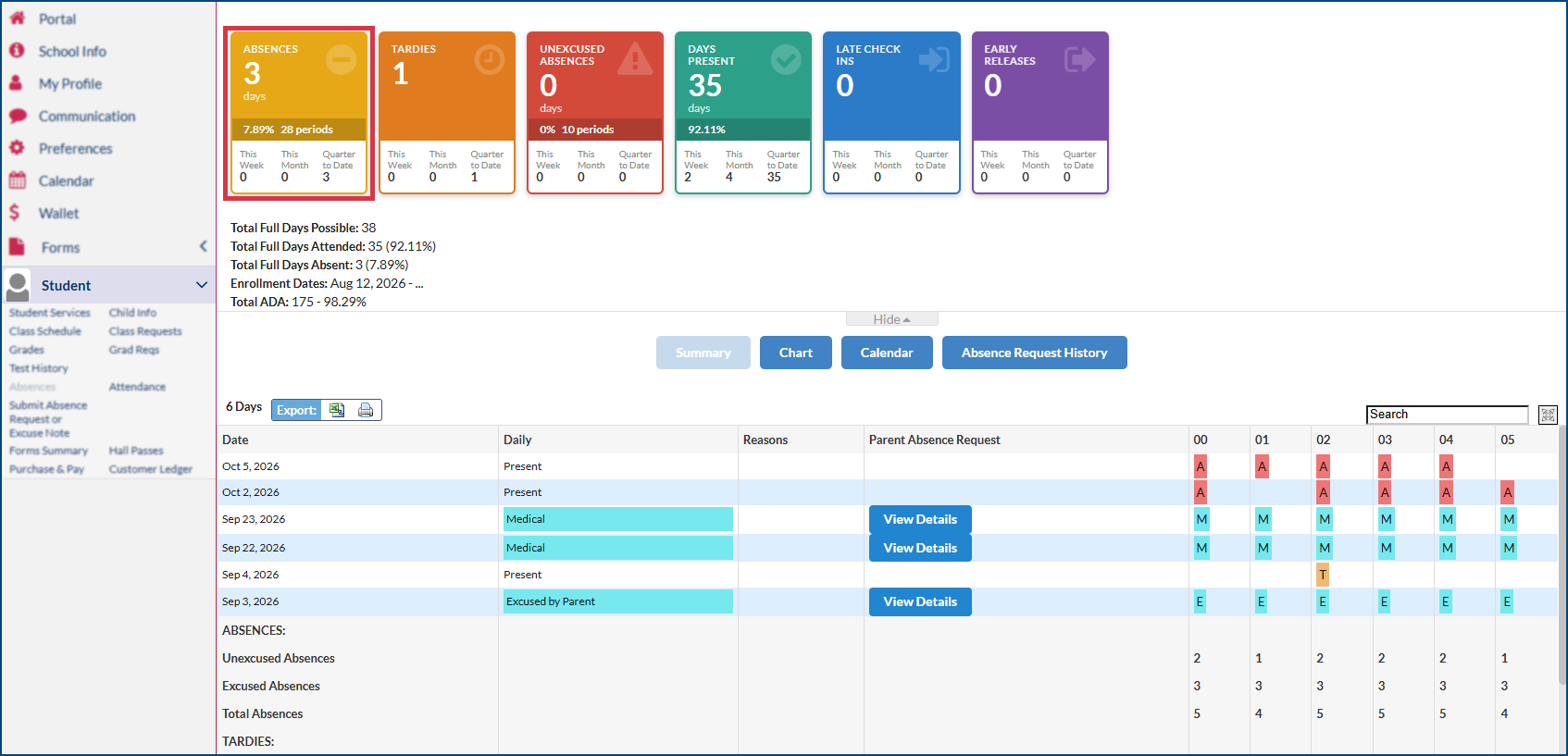
From this screen, you can review the Attendance Summary cards, which give you a snapshot of the selected student’s attendance. Click on an attendance Summary Card to view more detailed information about your student’s attendance records for that category.
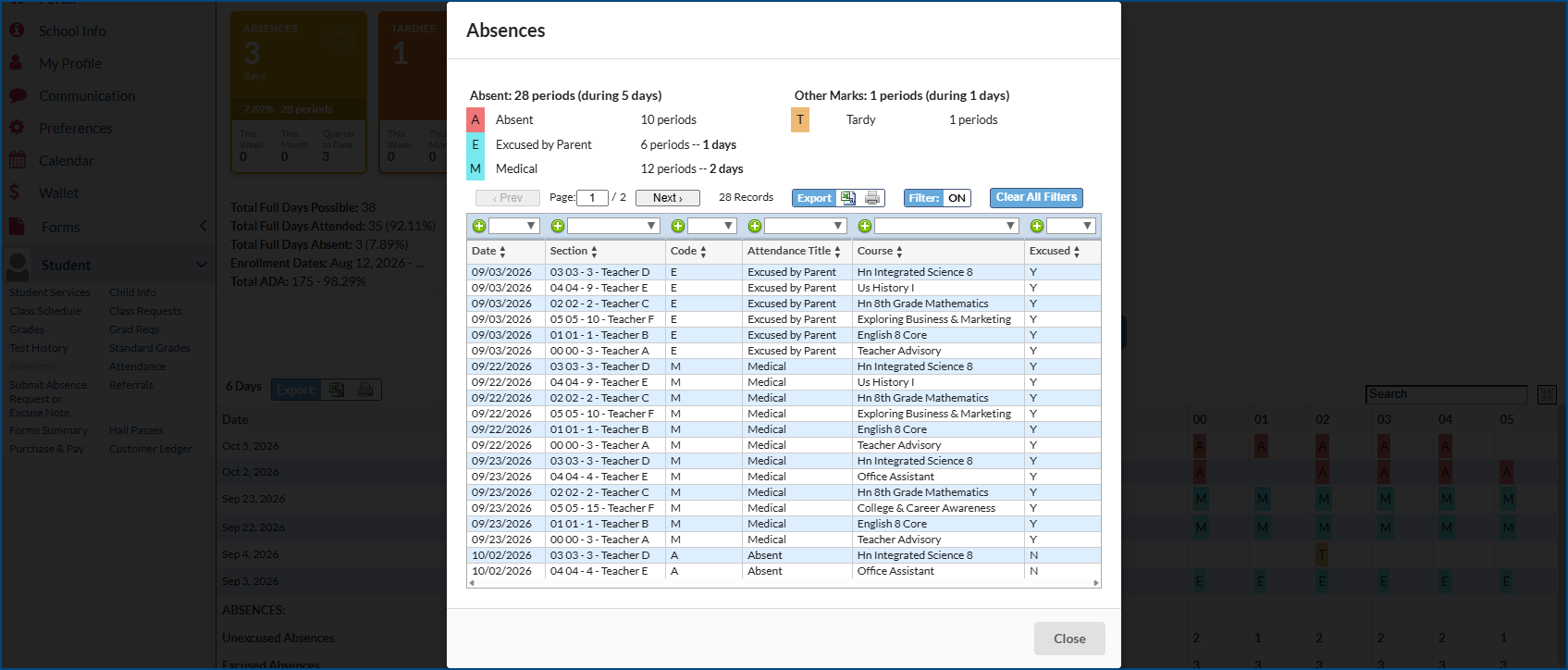
Select the Abences card to view detailed information about your student’s absences including a legend showing each attendance code with a corresponding count, total number of days absent and periods absent. To exit out of the pop-up, select close.
Submit Absence Request or Excuse Note
To excuse a student’s absence, log into your Focus portal, then select Submit New Absence Request under the student in the left menu
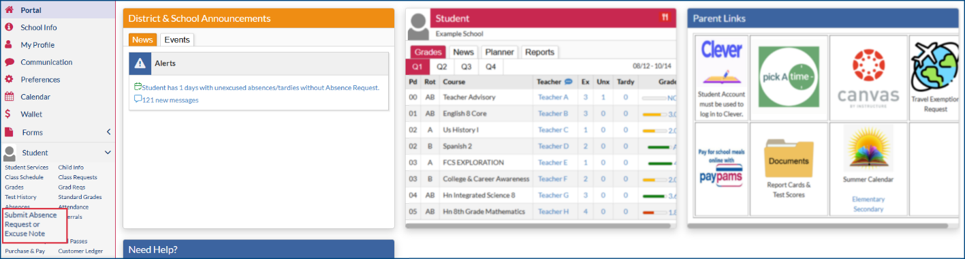
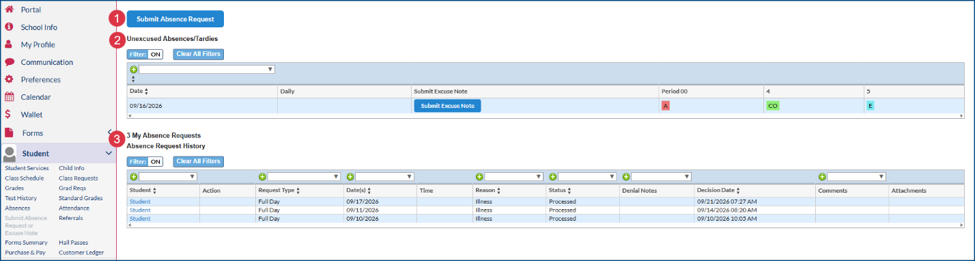
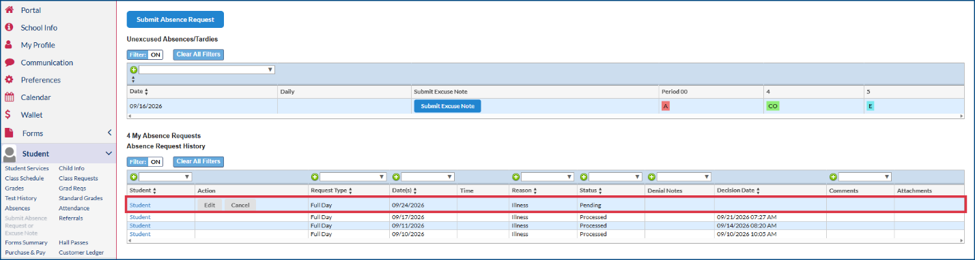
On the Submit Absence Request or Excuse Note page, you may have the following options:
- Submit Absence Request – Select this option to submit a new absence request for your student. This can be used to excuse future absences for your student.
- Unexcused Absences/Tardies – View unexcused absences or tardies within the last 10 school days. Select the ‘Submit Excuse Note’ option to start this process.
- Absence Request History – If you have previously submitted an online excuse, you can view the status of these requests in the table.
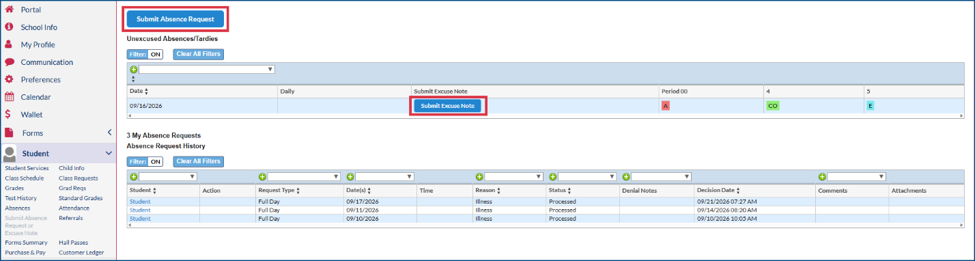
Select ‘Submit Absence Request’ to excuse a future absence or select ‘Submit Excuse Note’ to excuse a prior absence
All fields with a red asterisk are required.
Select the absence reason from the dropdown menu
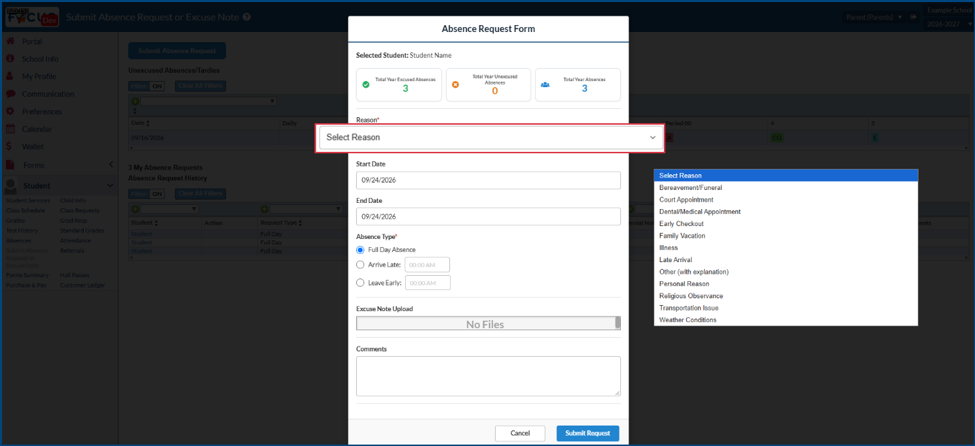
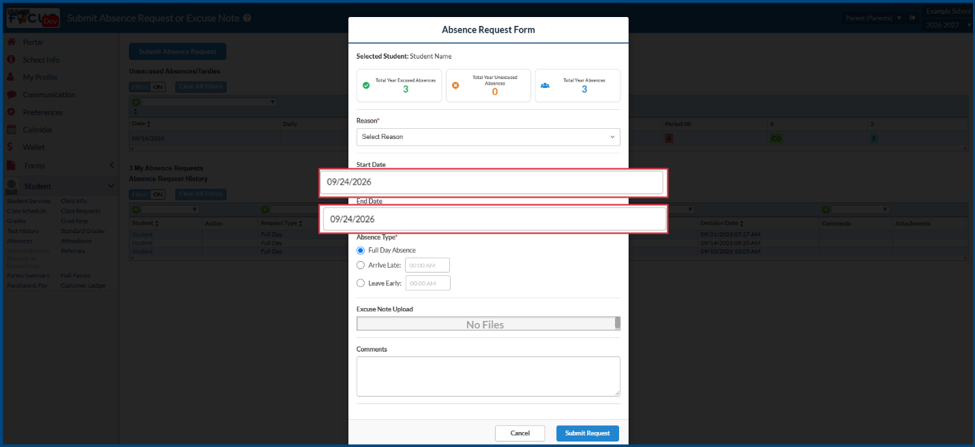
Select the Start Date and End Date for the absence request.
The date fields will both default to today’s date.
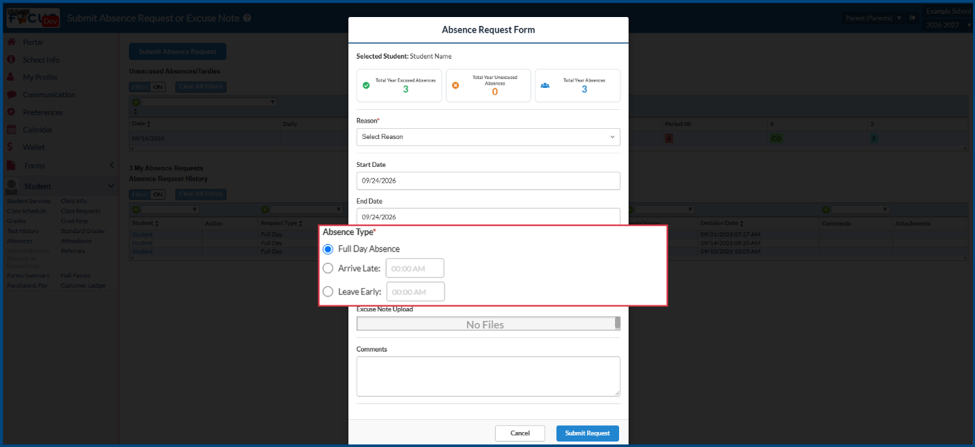
Select the Absence Type, full day, late arrival or leave early
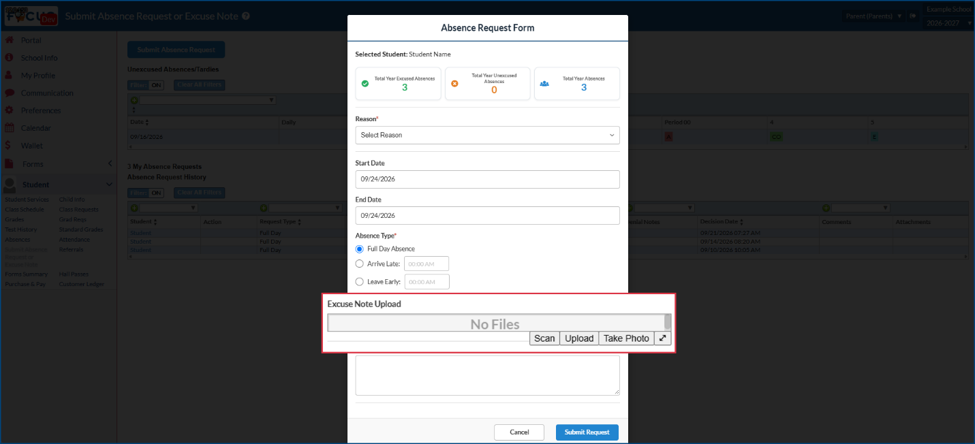
Hover over the Excuse Note Upload field, then select scan, upload, or take photo of the note
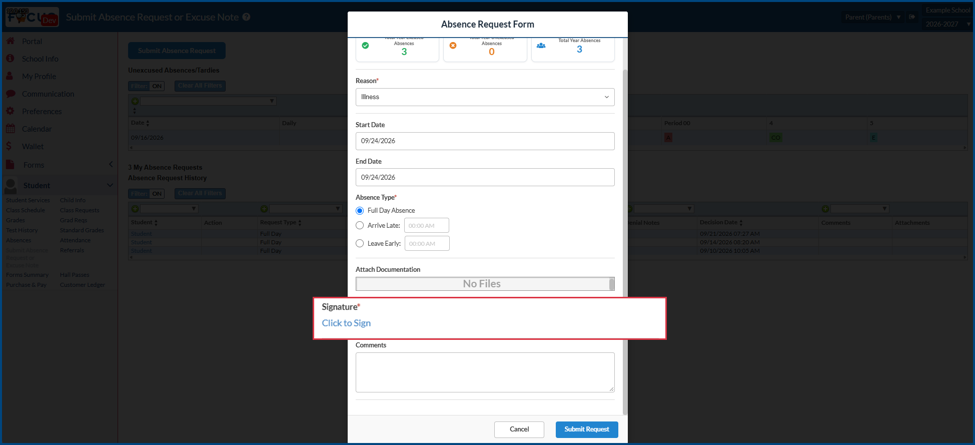
After you select a reason, a signature will be required. Select ‘Click to Sign’ to add your signature.
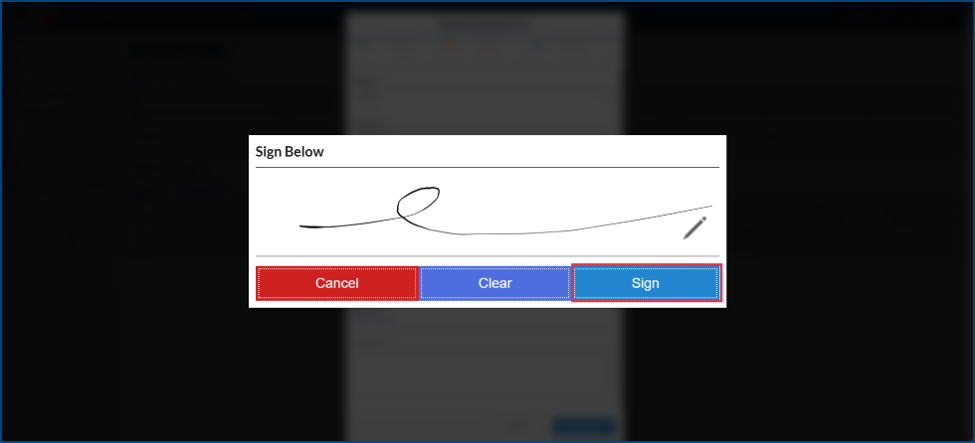
Electronically sign then select ‘Sign’
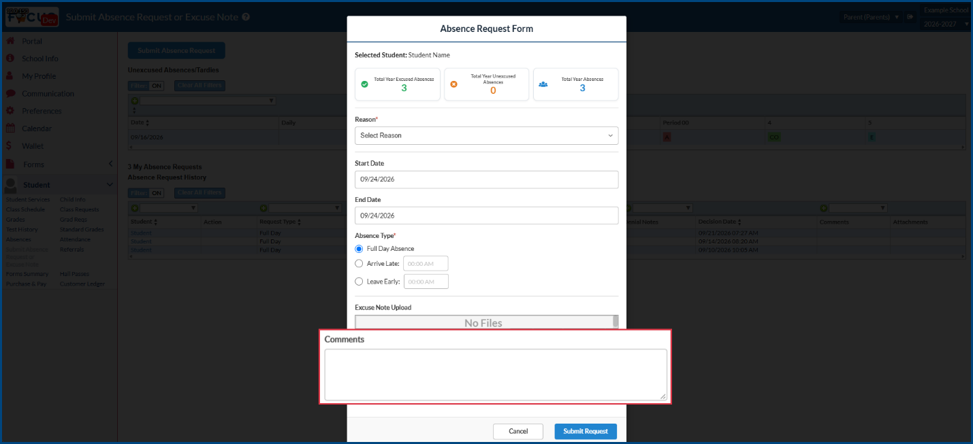
Add any additional comments in the comment box
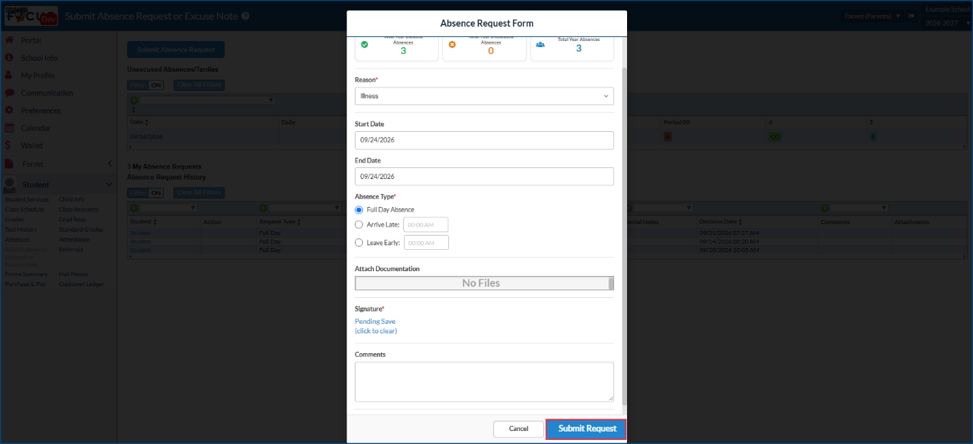
Select Submit Request to send your request to the school for approval
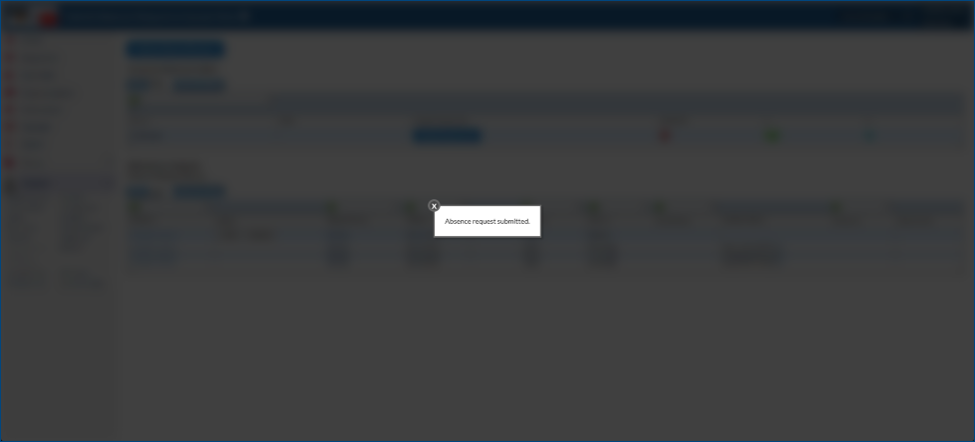
A pop-up will notify you that the absence request has been submitted. Select the X or click in the grey space to clear the pop-up.
In the Absence Request History, you will now see the new request. You can edit or cancel the request by selecting either option.
This webpage is being updated
You must be logged in to post a comment.