


Web View – Focus Portal
Top of screen:

- District Logo – Click on the Granite School District logo to return to the Portal Page
- Portal – Title of the page you are viewing. The Portal is your home screen for Focus
- Help – Click on the Help link to access information about the page you are viewing
- Guardian Name – Displays First and Last Name of the person logged into Focus
- Logout – Allows the currently logged in user to log out of their Focus portal
- School List – Displays the name of the school your student attends.
- If you have multiple students attached to your parent account, the school in the top right will display depending on which student information you have selected
- If you have a student attending multiple schools, there will be a dropdown option for that student to allow you to choose which location information you would like to view
- School Year – Displays the current school year. You can view historical information by changing the school year using the drop down menu
District & School Announcements:

- District & School Announcements Tile
- News Tab – Displays portal messages from your school or district
- Events Tab – This will display the school calendar, A/B day rotation for some secondary schools, and any events that have been populated
- Alerts – Information that needs your attention in your Focus portal like new messages, invoices, forms that need to be signed, etc
Student tile:
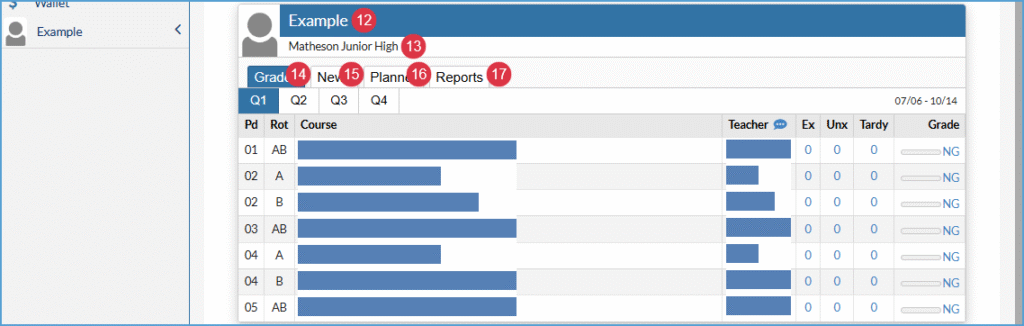
- Student Name – You will have a tile for each of your active students in Granite School District
- School Name – Displays the school your student is currently enrolled
- Grades – Displays student schedule with absences and current grade for the courses
- Use the Q1, Q2, Q3, Q4 options to view future schedules or past grades/attendance data
- News – Overview of attendance and assignments
- This tab may also display positive behavior data if your school
- Planner – Displays when assignments are due
- Reports – When report cards are published, this is where to access them
Side menu:
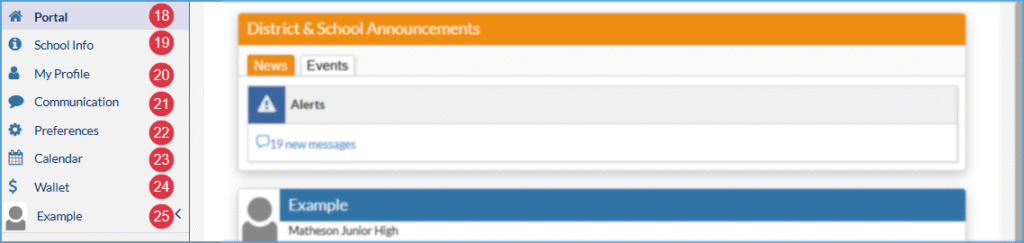
- Portal – Homepage of Parent Portal, shows District & School
Announcements and student tiles - School Info – Displays general information about the school in the top
right corner of your screen - My Profile – General Parent information and shows students attached to
Focus Parent Portal - Communication – Messages received from the district, school, or your student’s teachers. You can also compose new messages to your student’s teachers through this module
- Preferences – Allows you to choose a Focus Parent Portal color, language,
and notification status - Calendar – Displays the District and School calendar information
- Wallet – Allows parents to securely store credit card information within wallet for a smoother and more efficient checkout process
- Student Name – All students linked to the parent account will have their own individual tabs, use the arrow to view additional student information
App – Basic Navigation
Logging into the App
For instructions on how to download the app, follow this Link.
Open the app on your device.
Click the orange Log In button to open username and password fields.

Enter your Focus Username and Password and tap Log In.

Overview
Once you are logged in, each of your linked students are listed on the Overview screen, along with their schedule, attendance summary, and gradebook grades for the current marking period.
If a period is currently in session according to the school’s bell schedule, the course information is displayed next to “In Session” above the schedule, along with the student’s attendance code for that period. “In Progress” will also display next to the course in session in the student’s schedule.

Tapping “More Info” next to a student allows you to view more student information and access additional Focus features for the student.
From the Overview screen, tap More Info next to the student.

- Courses: Click to see student schedule.
- Planner: Click to see assignment due dates.
- News: Click to see attendance information.
- Reports: Click to see report cards.
- Grades Summary: Click to see grades and attendance information, both current and historical.
- Grad Reqs: Click to see what classes the student has taken or still needs to take to graduate. Only available for high school students.
- Student Services: Includes information about services/programs in which the student is enrolled.
- Purchase and Pay: Click to see student ledger and pay outstanding balances.

Click Student Info to see Demographic Information on the student record.

Click the display options at the top to toggle between horizontal, table, and vertical view on the general demographics page.

Click the side triangle to open different demographic categories.

Click the name of any category to view student information.

From any screen within the Focus app, click the Email icon to access the communications area of the application.

To access general information, click the three lines in the upper left corner of the screen.
- Overview: Return to the main screen.
- News: View school news.
- Links: Links to school websites and social media pages.
- Forms: Optional and required school forms.
- School News Settings: Subscribe to school news feeds.
- Social Media News Settings: Subscribe to school social media feeds.
- Log Out- Click to log out of the Focus app.

The pages can also be accessed from most screens.

You must be logged in to post a comment.